BAREEQ Smart Products Pairing Guide
Select your product and start pairing with Ewelink app
Select Your Product
Before You Start
- Download Ewelink app from App Store or Google Play
- Create an account or sign in
- Ensure your phone is connected to 2.4GHz WiFi
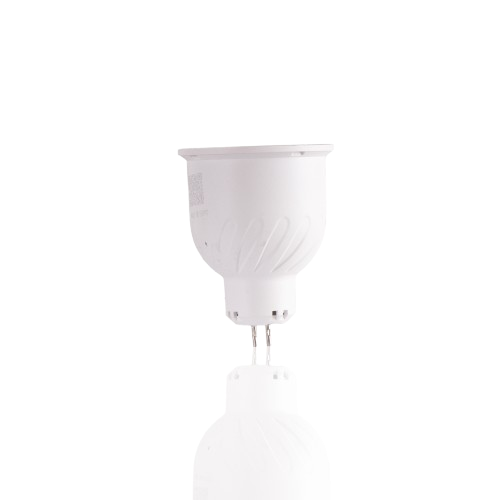
MR16 Smart Bulb
MR16 Smart Bulb
Power On
Connect the bulb to power. On first power-up, the bulb enters Pairing Mode (Breathing Mode) - light gradually brightens then dims repeatedly.
Warning: Breathing mode lasts 3 minutes only. After that, the bulb lights yellow and needs reset.
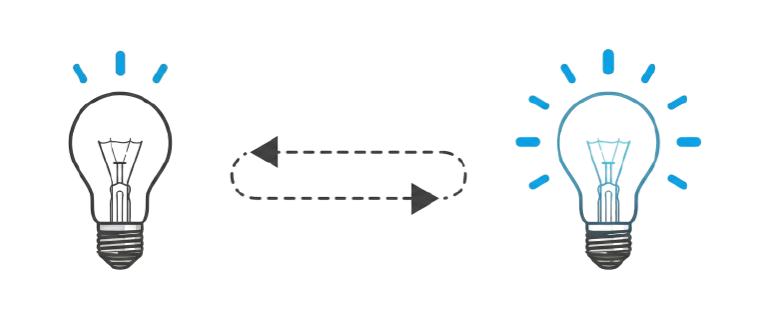
Light fades up and down
Open App
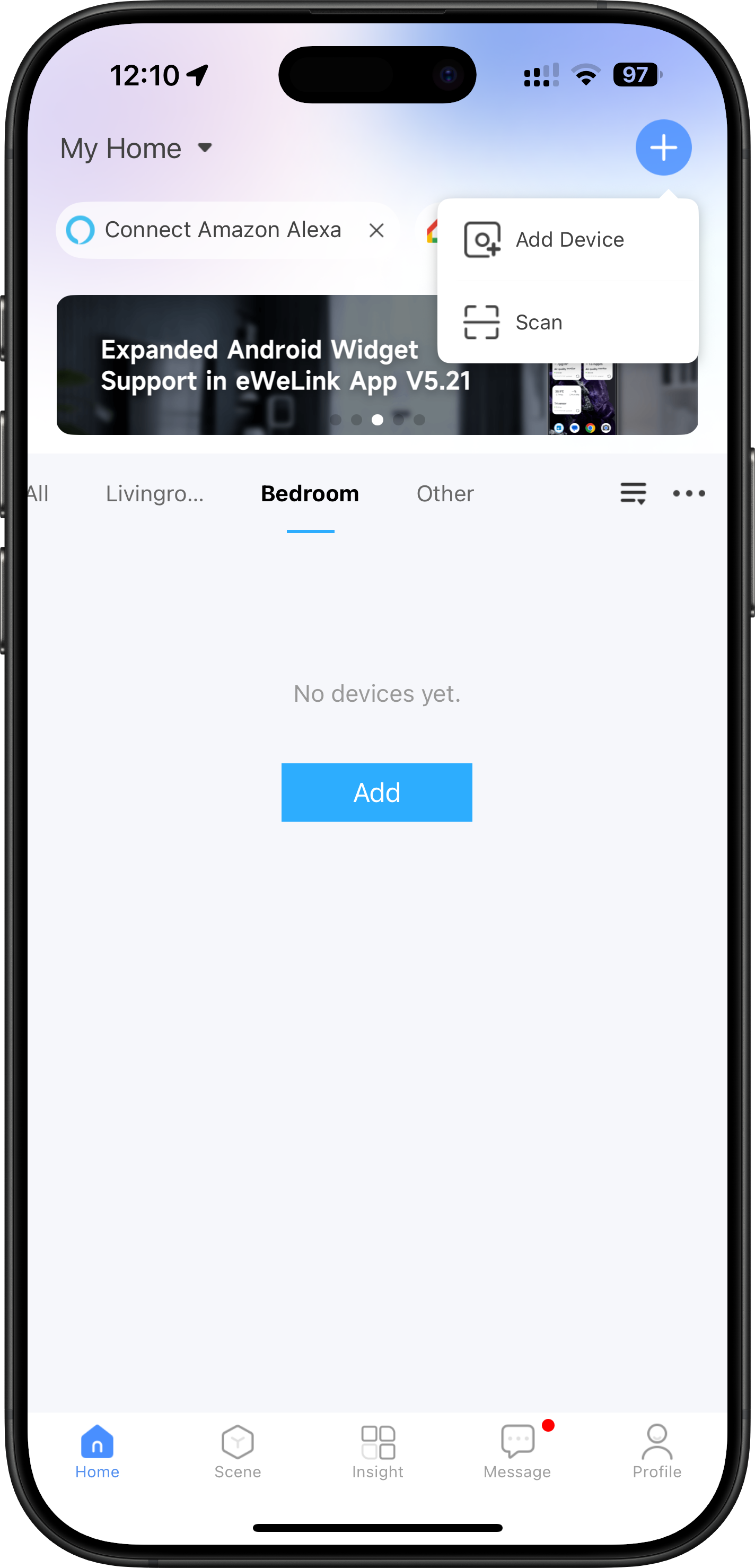
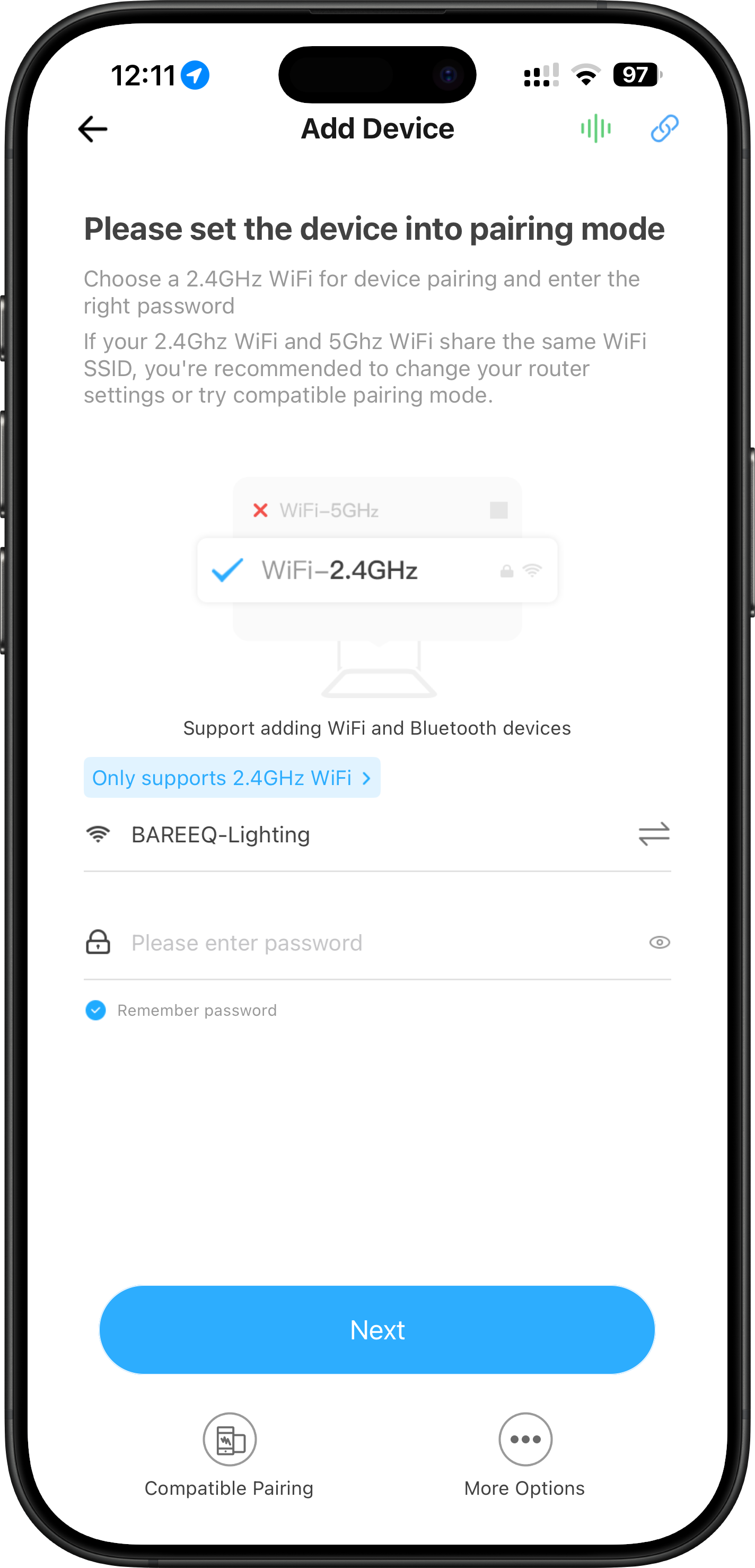
Open the eWeLink app and tap the (+) button at the top, then select "Add Device".
Enter WiFi
Enter your WiFi network name and password.
Important: Use 2.4GHz only - the bulb doesn't support 5GHz networks.
Select Device
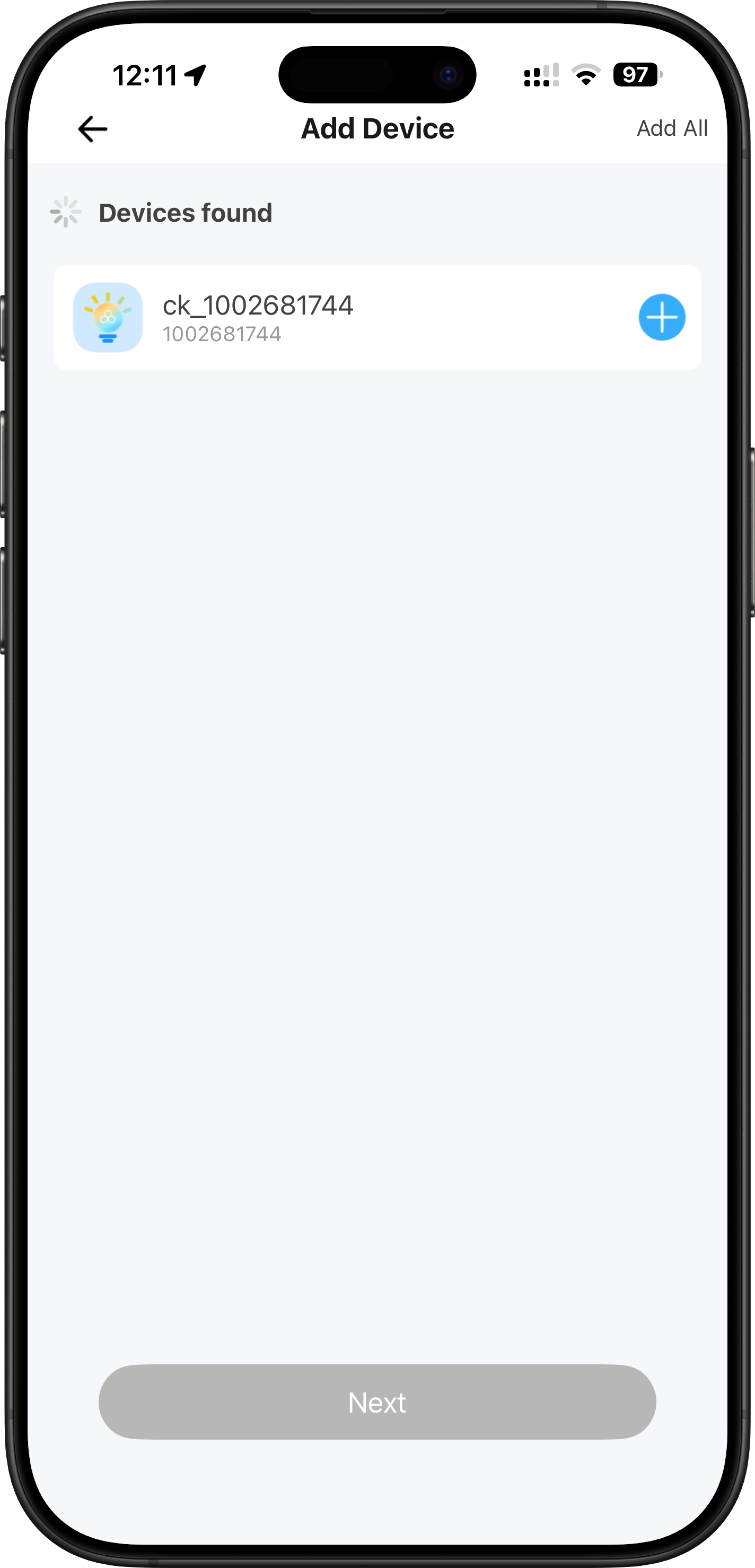
The app will search for devices. When "Light" appears, tap it then tap "Next".
Complete Pairing
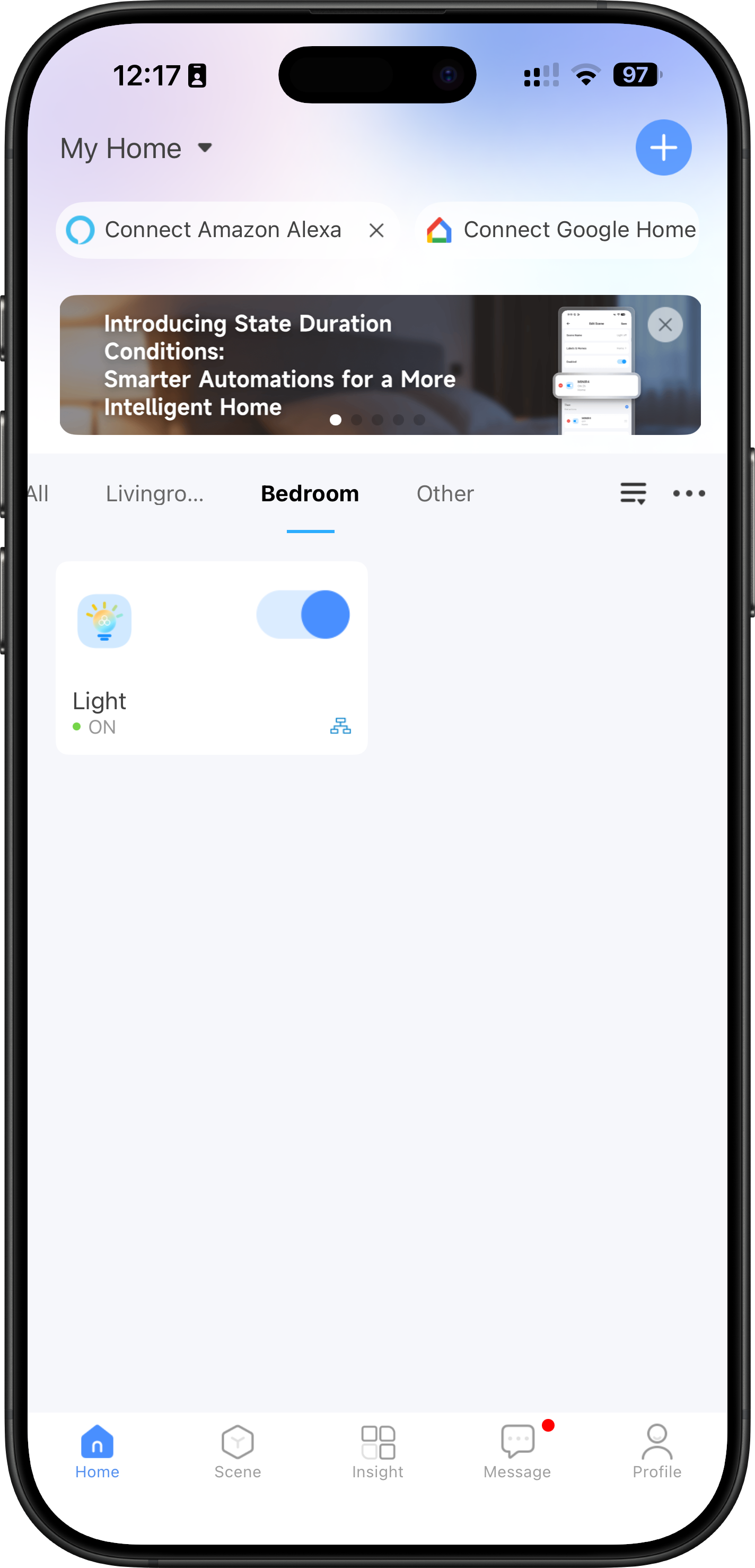
After pairing completes, the bulb appears on the home screen. Success!
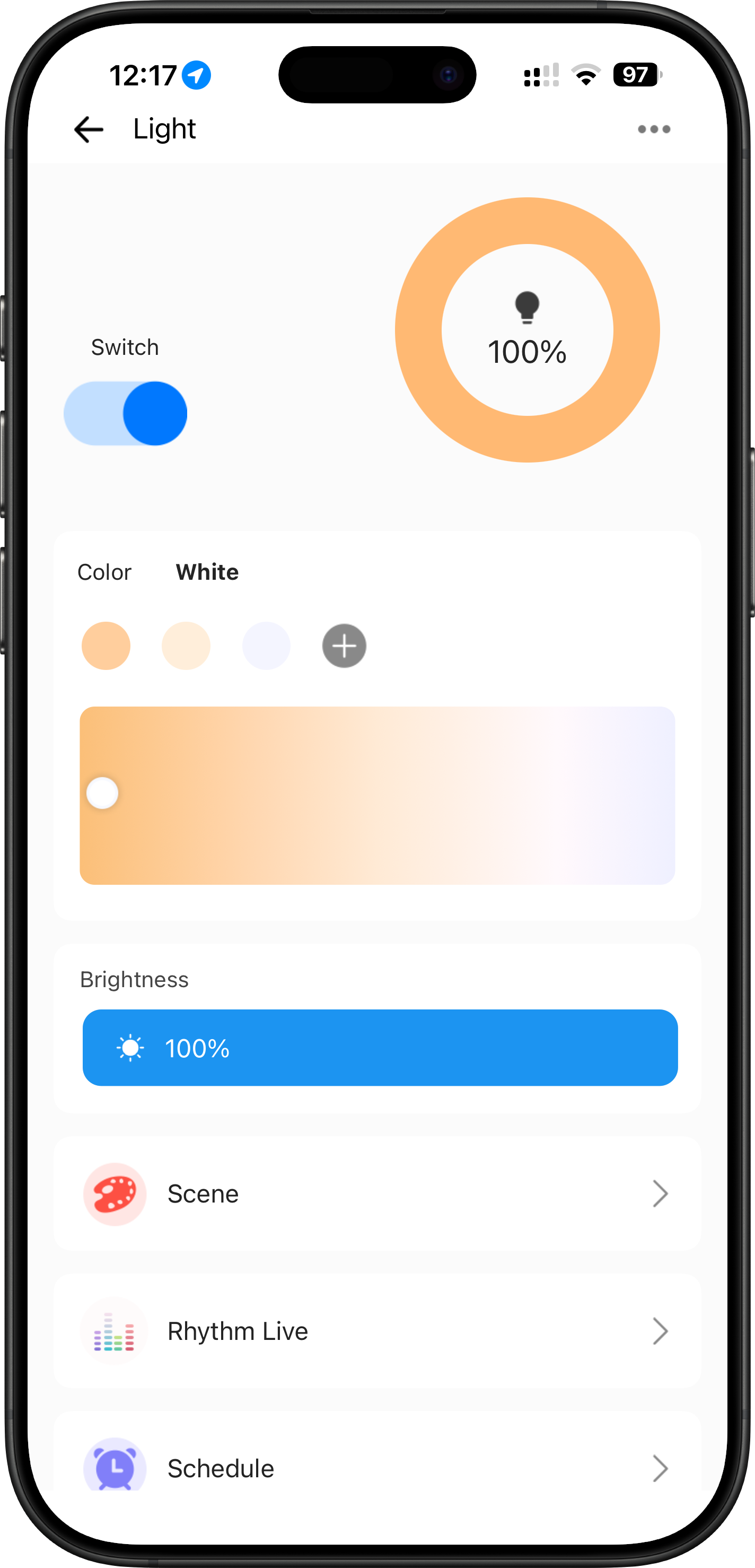
Control the Light
Tap the bulb to open controls: on/off, color change, and brightness adjustment.
If the 3-minute window has passed and the bulb is lighting normally, or if the bulb was previously paired and you want to re-pair it:
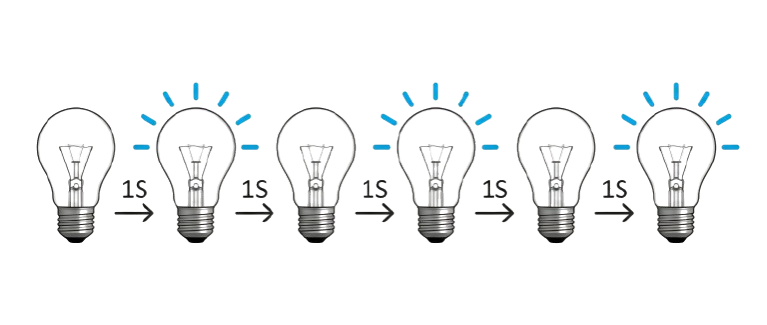
Turn the bulb on and off 3 times, 1 second for each state
- 1 Turn off the bulb from the switch
- 2 Turn it on and off 3 times consecutively (on 1s - off 1s - on 1s - off 1s - on 1s - off 1s - on)
- 3 Wait for the bulb to start "breathing" again - it's now ready for pairing
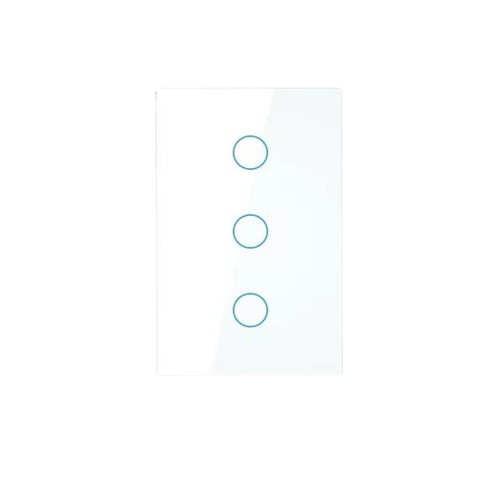
Smart Touch Switch
Power On
Connect the product to power and ensure it's in pairing mode (rapid blinking)
Open App
Open Ewelink app and tap (+) to add a new device
Select Device
Choose your device type from the list and follow on-screen instructions
Complete Pairing
Wait for pairing to complete and the device appears in your device list
If the device is not in pairing mode:
- 1 Long press any button for 10 seconds
- 2 You will hear a confirmation sound and lights will blink
- 3 The switch is now ready for pairing
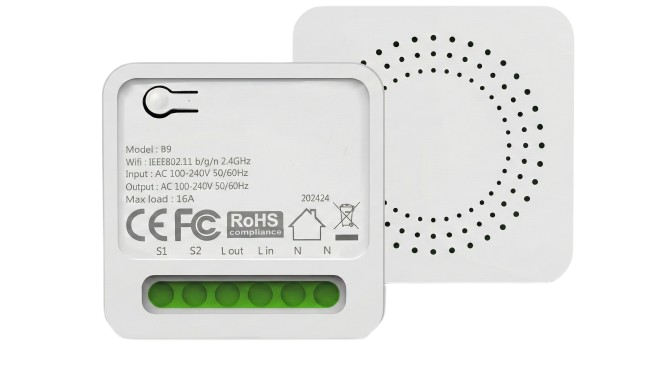
Smart Light Module
Power On
Connect the product to power and ensure it's in pairing mode (rapid blinking)
Open App
Open Ewelink app and tap (+) to add a new device
Select Device
Choose your device type from the list and follow on-screen instructions
Complete Pairing
Wait for pairing to complete and the device appears in your device list
If the device is not in pairing mode:
- 1 Press the Reset button for 5 seconds
- 2 The LED indicator will blink blue
- 3 Device is ready to pair